
SFTP Server
To use the server you first need a valid account provided by our support. Additionally, you have to install a data transfer application that supports the SFTP protocol.
Examples are:
-
FileZilla - https://filezilla-project.org/
-
WinSCP - https://winscp.net/eng/index.php
-
CyberDuck - https://cyberduck.io/
Please refer to the installation manuals to the tool for detailed instructions.
Connecting
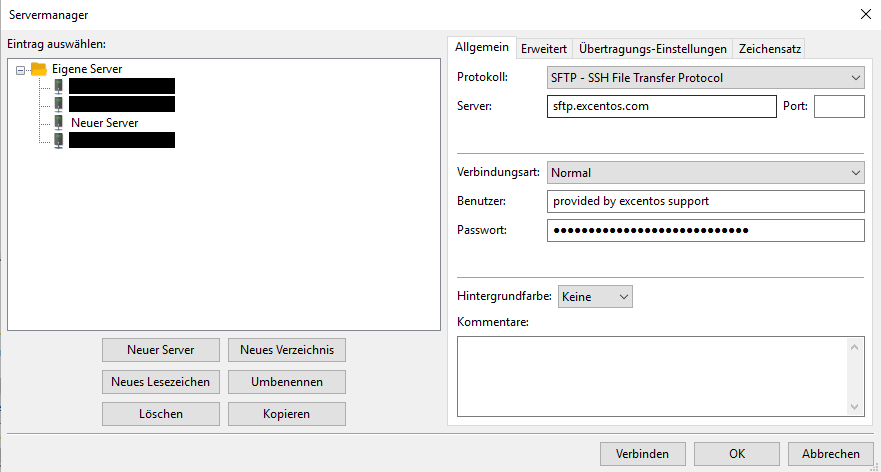
Section titled “Connecting”Open a new connection in the tool of your choice and enter following connection parameters:
Parameter |
Value |
|---|---|
Host |
sftp.excentos.com |
Port |
22 |
Path |
www |
Username |
<provided by excentos support> |
Password |
<provided by excentos support> |
Note that if you don’t provide the path, you have to enter the directory “www” manually because the root directory is not writable due to security reasons.
Alternatively, access can be granted by using a public key file. In this case username and password are not necessary.
Example FTP Clients
Section titled “Example FTP Clients”Filezilla
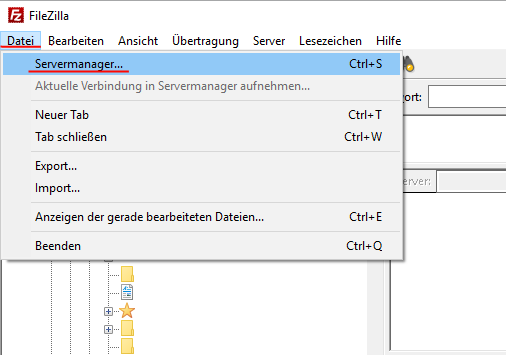
Section titled “Filezilla”The following example shows how to connect to excentos SFTP server using FileZilla:
Troubleshooting
Section titled “Troubleshooting”If you are having problems to connect to the excentos SFTP server, please check:
- are you using an up-to-date FTP client? There were problems with
older versions (that e.g. don’t support latest security / encryption
settings).
If you are not sure, please install the latest FileZilla client and try it out - are your username and password correct? Please make sure you did not copy-paste any blanks