
Preselection Configuration
The preselection configuration serves to set and highlight answer option recommendations depending on the given user inputs. That means, you can configure which answer options are the most suitable based on the already answered questions during the whole advising process. This should support the user to find the most matching answers and thus also the best fitting products.
Table of contents:
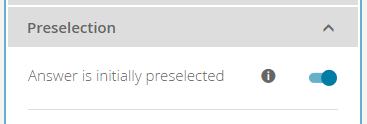
Initial Preselection
Section titled “Initial Preselection”With an enabled initial preselection
an answer option is selected before the Product Guide starts. This means
that you do not have to pick the option when their question becomes
visible.
This feature can be used when a
question has an answer option which users click most often. This
enhances the click flow and shortens the time to complete the advising
process to get to the recommended results.
Note 1
Warning: The initial preselection can be overwritten by any other answer option selection on the corresponding question by the user. Thus, this state is always changeable.
Note 2
Warning: The initial preselection is also overwritten by a conditional selection if a fulfilled condition selects a different answer option of the corresponding question. In the worst case, this can lead to the initial selection never being displayed as selected in the Product Guide.
Numeric Preselection
Section titled “Numeric Preselection”For numeric questions, there are not answer options per value which can be preselected. Instead, you can enter a numeric value (for range two values) in the input field.

Conditional Selection
Section titled “Conditional Selection”A conditional selection describes a set of condition rules which have to be fulfilled to highlight and/or select a target answer option. These deductions can be used to guideline the user and shortens the time to complete the advising process.
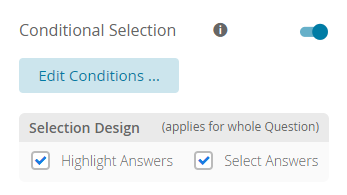
Initially, the toggle button right next to the “Conditional Selection” text is disabled. That means, you cannot set conditions until this button is enabled (see the state in the image). After enabling the button the underlying conditions button and the selection design panel become active too.
How does it work?
Section titled “How does it work?”You can decide for each question (target question) under which circumstances it will be selected/highlighted. That means, you can define a set of source questions (excluding the target question) which have to be answered with specific answers to recommend an answer option of the target question.
All source questions can be connected with a logical AND (all conditions have to be fulfilled) or with an OR operator (at least one has to be fulfilled) or with a combination of both using nested subgroups. These combinations allow you to define multiple choice branches when a target option should be selected/highlighted. For more information about the settings of a single condition, please read the next sections below.
Set Conditions
Section titled “Set Conditions”All preselection conditions are defined within a dedicated rule building modal window. This rule builder is used by different properties within the Workbench. That is why the description of the condition selections can be found in the view Rule Builder Modal Window.
Numeric Conditional Selection
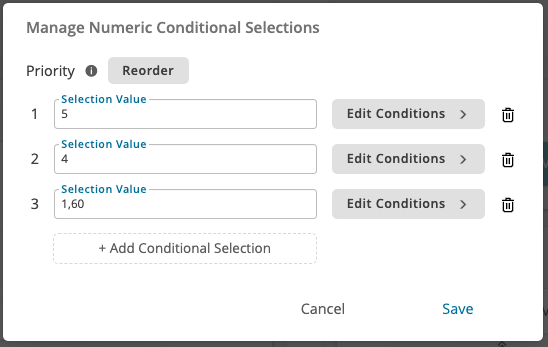
Section titled “Numeric Conditional Selection”As for the numeric preselection, the conditional selection also works a bit differently. Here, if you click on “Edit Conditions…” a modal windows pops up in which you have to define the numeric selection and its conditions. You can define as many numeric values as you wish.
To reorder the values, you have to click an “Reorder”. Then, up and
down arrows appear for each value. Clicking these arrows change the
position of the value
(
== one position up,
== one position down).
Selection Design
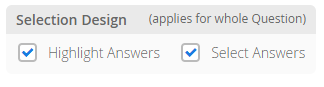
Section titled “Selection Design”With the aid of the selection design settings you can determine the client appearance of the conditional selection results. The settings always applies to the whole question. So you cannot only highlight one specific answer option and only select the others within one question.
Highlighting
Section titled “Highlighting”The target answer option is marked with a suggestion symbol which serves as a tip for the user. The answer option is not selected.
Automatic Selection
Section titled “Automatic Selection”The target answer option is automatically selected if its conditions are fulfilled.
Note
Note: An automatic selection without highlighting is currently not available. It will be added in a later iteration.
Troubleshooting
Section titled “Troubleshooting”Multiple selections in a single selectable question
Section titled “Multiple selections in a single selectable question”A single selectable question can only handle one answer at once. That causes issues if multiple conditions of different answer options of the same question are fulfilled simultaneously. In that case no answer option is set.
Why I cannot see a question in the condition question selection?
Section titled “Why I cannot see a question in the condition question selection?”Probably because this question is not available due to a potential circular dependency. Read more in section Question selection.
Example
Section titled “Example”will follow soon