
Administer Attribute Values
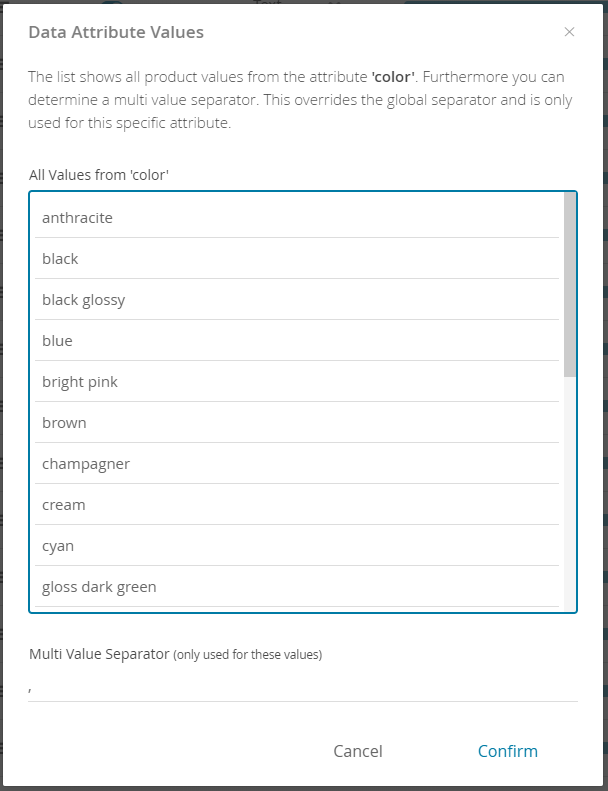
Each attribute in the Data Attribute Table has a button in column “Values” which opens this modal window. It contains a list of all distinct values of the corresponding attribute.
Furthermore, you can configure the local multi value separator. This character or string splits a value into multiple values. The input field is only enabled if the multi values toggle button from the data attributes table is enabled for this attribute. Please look at the example below to understand how the separator works.
You are also able to define the decimal separator for numeric
attributes. If this attribute is using a dot separation “Dot
separated” should be selected. Otherwise, if this attribute contains
comma separated values “Comma separated” must be selected.
Note: If the decimal separation sign is wrongly set, the values are
displayed differently in the Product Guide (in most cases wrong).
Example
Section titled “Example”- Attribute: color
- Value: “black,blue”
- Local separator: ”,”
- The value will be converted into the two values “black” and “blue”.
Read more about the Control Bar or the Data Attribute Table
AI-Data training
Note: Our AI-Data trainer enhances existing product data while developing a Product Guide.
Read all about the advantages of AI-Data training