
Rule Builder Modal Window
The rule builder is used in different views within the Workbench. Currently, you can define condition rules for the following properties:
Set Conditions
Section titled “Set Conditions”Normally if no conditions are defined, you can click on a button with a caption like “Add Conditions …”. If there are already some, the caption text is “Edit Conditions …”.
Either way, clicking the button opens a modal window in which you can add, edit and delete the option’s selection conditions.

If you click on the “Add Condition” button a new empty condition line appears (see image above). It contains the following elements.
Question selection
Section titled “Question selection”Within this combobox you can select any available question from the Concept Board.
What means available?
Note: A Question is available if its selection does not create a circular dependency. This can happen if one of the source questions contains the current target question as its source question. In this case, a selection of Answer A of the source question in the Product Guide can lead to a Answer B selection of the same question. These successive actions happen instantly to that a user selection is directly overwritten by another selection. That is why these questions are not available.
Circular dependency schema:
Source Question A → Target Question B → Target Question C → Target
Question
A ❌
Described in words: Question A is defined as a source condition in Question B. Question B is also a source of Question C. Now, if you want to select Question A as a source condition in Question C, it is not possible because it would close the circle of dependencies.
Warning:Note: The circular dependency check only works for the preselection rule at the moment.
Operator selection
Section titled “Operator selection”After a question was selected, it is possible to choose a mathematical operator. Depending on the questions’ answer option type, different operators are displayed.
| Answer Option Type | Operator | Constraints to fulfill the condition |
|---|---|---|
| default, ordered, boolean | |
At least one of the given answer options has to be selected |
|
All of the given answer options have to be selected | |
|
Any answer can be to be selected | |
|
As long as no answer is selected | |
|
None of the given answer options have to be selected |
|
| continuous numeric | |
The answer must be less than the given value. |
|
The answer must be less or equal than the given value. | |
|
The answer must be greater than the given value. | |
|
The answer must be greater or equal than the given value. | |
|
The answer must be between a start and an end value. Start and end values are not included. | |
|
The answer must be outside the interval of start and end value. Start and end values are included. | |
|
The answer must be equal to the given value. | |
|
The answer must be unequal to the given value. |
Answer option selection
Section titled “Answer option selection”The answer option selection is enabled after selecting a question. Depending on the questions’ answer option type you can either select an existing answer option from a combobox (for default, ordered and boolean) or enter a numeric value (for continuous numeric).

Subgroup creation
Section titled “Subgroup creation”Clicking the button with the caption ”+( )” creates a group around the corresponding condition row. With the new subgroup, a new logical operator selection is added too. That allows you to change the logical operator within this group to create more complex condition trees.
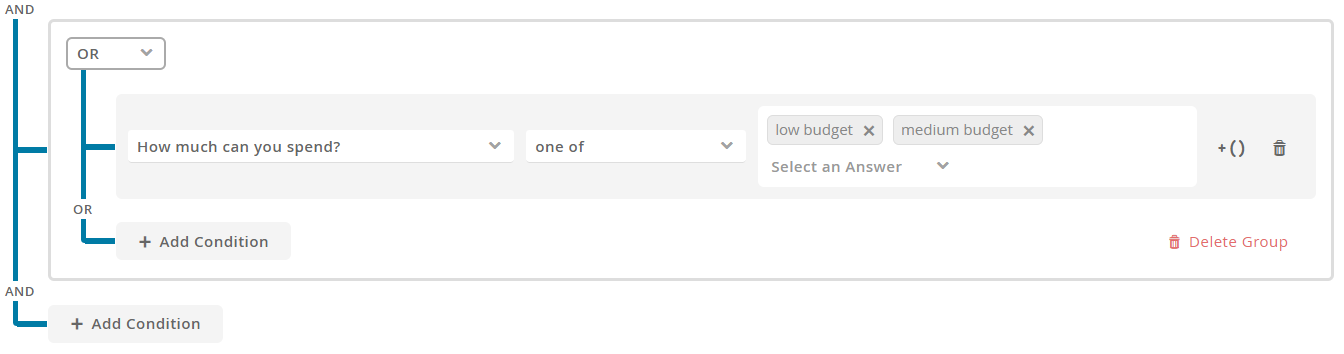
Within this group, you can add further conditions and create more nested subgroups. You can also remove the group again. Note that removing the group also removes all underlying conditions as well.
Subgroup displayed with brackets
Note:Structure:
condition1 AND condition2 AND ( condition3 OR condition4 )
AND condition5
Example:
“Which gender?” one of “female, unisex” AND “Which size?”
between “32 and 40” AND ( “Which style?” one of “classic”
OR a “Which feature?” is answered ) AND “Price” less than
“300”
Explained in words:
Die Questions “Gender”, “Size” and “Price”have to be answered with one
of the given Answer Options respectively numbers between or under the
specified threshold. Within the subgroup only one Question has to be
answered with the specified Answer Options to fulfill to whole
condition. In this case, the “Style” Question needs the answer “classic”
or the “Feature” Question has to be answered with any of its given
options.
Condition deletion
Section titled “Condition deletion”The button with the trash can icon removes the corresponding condition from the rule set. This action cannot be reverted.